We provide reports about asset performance in CSV format.
Depending on your Excel's regional setting, your default delimiter/separator may either be using semicolons (;) or commas (,) to separate items in a CSV file. If your regional setting is to use semicolons, this can cluster all the field values into column A because exported files from YourVid use commas (,) as the default delimiter/separator.
In this case, we suggest using Google Sheets to convert the CSV to any format that you can process:
-
Create a new sheet in Google Sheets.
-
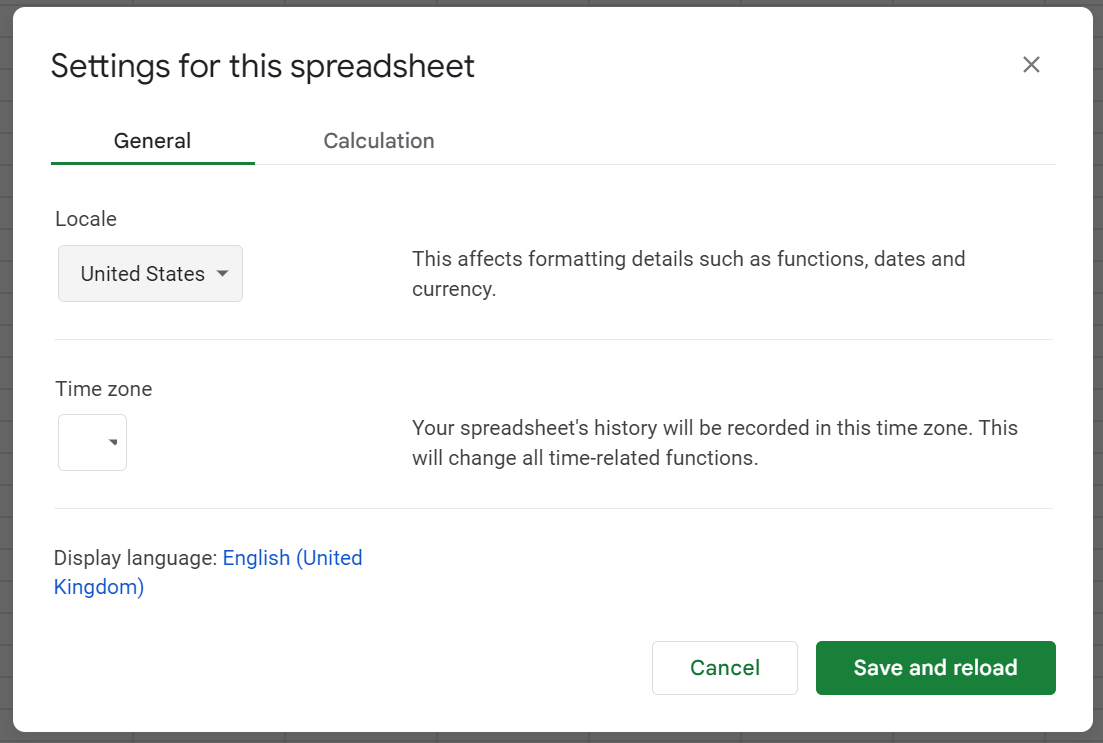
Go to "File" -> "Settings", and set "Locale" to "United States". Click "Save and reload".
-
Click "File" -> "Import" and select/upload our report in CSV format.
-
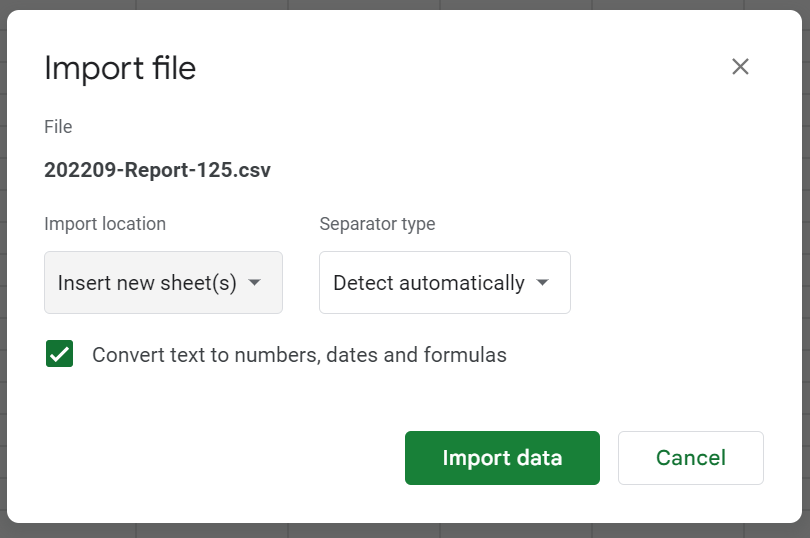
Select "Insert new sheet(s)" as "Import location", make sure the other inputs are as on the screenshot, and click "Import data".
-
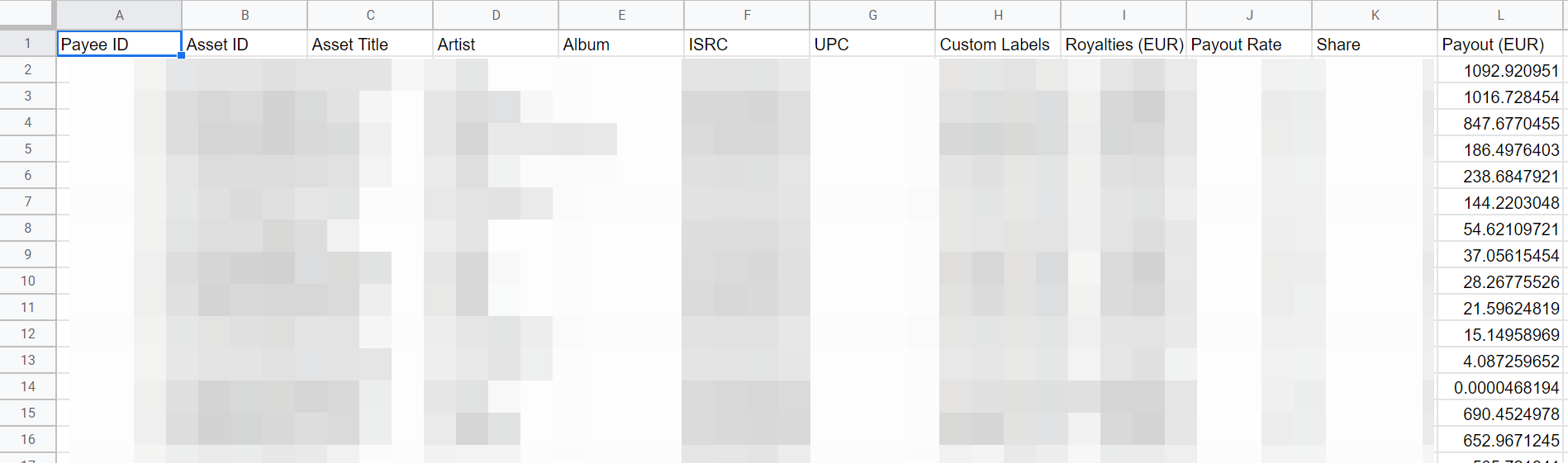
The report should be imported correctly, like this:
-
You can now view and process the report in Google Sheets. Alternatively, click "File" -> "Download" -> "Microsoft Excel (.xlsx)" to download a file you can open in Excel.